Editing with Emacs
authors:
table of contents
Emacs in tilde.club §
GNU Emacs is a text-editor that is very capable, but also can be confusing to new users, so here’s a basic guide of working with GNU Emacs.
Opening Emacs §
You can open GNU Emacs by typing emacs in the shell.
This then opens GNU Emacs :D.
Basic Elements of the Screen/Terminology §
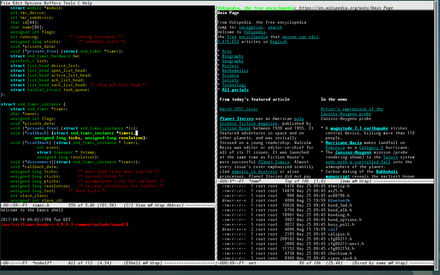
When first starting GNU Emacs, there are a few elements of the screen that you should know:
Buffer §
A “Buffer” is basically a container that holds the contents of whatever file you’re editing.
“Buffers in Emacs editing are objects that have distinct names and hold text that can be edited.”
Window §
Unlike what Microsoft Windows and other common-place OS’ consider “windows”, a window in GNU Emacs is more like a window “pane”, as where a buffer contains content, a window contains a buffer.
“In Emacs terminology, a”window” is a container in which a buffer is displayed. This may be confusing at first; if so, think “pane” whenever you see “window” in an Emacs context until you get used to it.”
Modeline §
The Modeline is the strip of details towards the bottom in an instance of GNU Emacs. This shows the file/buffer name, file type, any active modes/extensions, line and column numbers, and more.
Minibuffer §
The Minibuffer is the small area under the Modeline. It acts as a prompt, telling you when you’ve hit the beginning/ending of a buffer, allowing you to type interactive commands, alerting with message, allowing you to insert input, and more.
Menu Bar §
The Menu Bar is the series of drop-down menus at the top of a GNU Emacs instance. It gives all the available commands in the current buffer, and shows their corresponding keybindings.
About Emacs Keybindings §
GNU Emacs has some weird, wild command invocations, that may not make sense to new users. While this tutorial is also showing you how to use the drop-down menus, it’s still good to know how to read command’s keybindings, as using them is the more effective/productive route.
C-means the Control/Ctrl keyM-means the Meta key- While not common on modern hardware, the Meta key can be typed by either using, or by pressing-and-holding the Alt key, or by pressing-and-release the Escape/ESC key in some cases
Keybindings in GNU Emacs are typically longer than keybindings used
outside of GNU Emacs, usually being a combination of what would be two
“normal” keybindings. For example; to exit GNU Emacs, you can type
C-x C-c. That means you press both of these keybindings in
series to complete the GNU Emacs functionality of exiting GNU Emacs. It
may sound weird, but is easy to adjust to after using it for a
while.
Interactive Learning §
The best way to begin learning, is the interactive way. GNU Emacs has
a built-in command that is specifically to learning the basic of GNU
Emacs. To access it, you can press C-h t, or execute the
GNU Emacs command named help-with-tutorial (pressing
M-x help-with-tutorial).
To close the tutorial, use C-x k to kill the buffer.
Navigating Emacs with the Drop-Down Menus §
The way you access the drop-downs are by pressing the
F10 key, then using the arrow keys to navigate through the
menus. You can press the F10 key again to exit the menus,
or the global “quit” command, C-g. As easy as these menus
are, I recommend learning the commands by name, or slowly learning the
keybindings as they make it faster and easier to navigate through GNU
Emacs as a whole.
Most Common Emacs Keybindings §
Here are each of the most common commands, with the corresponding keybindings next to their respective section title.
Switching Buffers (C-x b) §
When you start GNU Emacs using emacs in the shell,
you’ll be greeted with a welcome screen, along with two other buffers
titled *scratch* and Messages. You can switch
between these buffers by going to the Buffers drop-down and selecting
which buffer to go to.
Visiting a New File (C-x C-f) §
To visit a new or existing file, simply go to the File menu and select “Visit New File”. You may also select “Open file…”, however this does the same thing as “Visit New File”, just without the ability to create a new file.
Save and Save As (C-x C-s, C-x C-w) §
To save the current buffer, select “Save” from the File menu. If you need to save the buffer as something else, you can select “Save As”, which is also in the File menu.
Killing a Buffer (C-x k) §
Whenever you are finished working on a file, and no longer need the buffer (in which the file is represented in), you can kill the current buffer by selecting “Close” from the File menu.
Cut, Copy, Paste (C-w, M-w, C-y) §
Cut, Copy, and Paste are all available in the Edit menu.
Emacs is Self-Documented §
GNU Emacs is a very big program, and to master it, it takes a lot of time. GNU Emacs is a Lisp environment, where you can grow a lot. Which makes learning GNU Emacs, a great investment of time; because you can do basically everything, related to text, and for a GNU Emacs user, the sky may be the limit :D . Which means you will be able to do anything (mostly related to text) with GNU Emacs.
But you don’t need to know everything that GNU Emacs has to offer (is there anyone that does know?)…. The most important thing to know, is how to seek for help. And GNU Emacs is there to help you.
To access the main help menu of GNU Emacs, you press
C-h C-h. This will open a new buffer, where you can
interact. In this buffer, there is, for example, ” b Show all
keybindings” entry. This means that if you now press “b” it will show
all the keybindings of your buffer.
And, if you are in any other buffer, and want to know all the
keybindings quickly, you may press C-h b instead (mind that
this “b”, after the C-h, has the same effect as pressing
“b” in the C-h C-h main menu help). C-h in GNU
Emacs, means exactly, I want help. Then follow it with a keystroke that
say the type of help you want.
Common Help Keybindings §
C-h t (help-with-tutorial) §
Select the GNU Emacs learn-by-doing tutorial.
C-h k (describe-key) §
Display documentation of the function invoked by a key sequence.
C-h f (describe-function) §
Display the full documentation of function.
C-h v (describe-variable) §
Display the full documentation of variable.
C-h a (apropos-command) §
Show commands that match a certain pattern.
C-h m (describe-mode) §
Display documentation of current major mode and minor modes.
C-h i (info) §
Enter Info, the documentation browser. It shows a complete documentation of your installed operating system’s commands.